Having naming conventions is essential: they help you find your way around your own work over time, and let you share your code with colleagues without them having to rediscover everything from scratch. They also reflect the developer's personality, and already hint, in a way, at how future development will be carried out.
So here are the naming conventions and a few development tips that I want to share with you. Naming conventions, yes, but also a way of developing — principles I bundle together as the basic development practices we follow. They're not absolute truth. Their purpose is to share our way of doing things. You'll be able to adapt them to your own needs if you don't have any yet, or compare them with what you already have. "Oh, that's better than what I do." Or, "ugh, that's no good — I've tried that and it didn't work for me." Or, "cool, that's just like me."
You'll take from this sharing whatever suits your taste. It's by no means the best approach, and it's by no means completely worthless. I've been refining it for more than 26 years now, across the teams I've managed. Some backtracking, some very long deliberation over a small point, and some things that were obvious from the start. Along the way, as FileMaker itself evolved. A huge leap happened in 2004 with the arrival of the relationships graph. Then in 2012 with the arrival of themes. Many people have adopted these rules and made plenty of changes to fit their own logic. I hope this article will at least get you thinking about your own conventions if you already have some, or about the need to put some in place if you don't.
Files
In a FileMaker development, you'll find several places where object names need to be codified. I'll start with the file name itself. There are countless ways to name your files, depending on how each person develops. For our part, they start with a three-letter code (a "trigram") we assign to the client. An old habit from the days when servers were shared and we couldn't have two files with the same name, obviously. If the client happened to give you a name for the software you're building, it becomes XXX_SoftwareName. At our company, we develop in three files. Another old habit, from the days when updating the server wasn't as simple, and uploading a file took a very long time if it contained containers. So: a UI file (User Interfaces), a DATA file, and a BINARIES file to store all the images, documents, or other binary files your client needs. Not much originality on our part there — XXX_Datas and XXX_Binaries. I'll admit that now that shared hosting is no longer permitted by Claris, and most clients have opted for a professional hosting provider, we've dropped the trigram. All that for nothing? Well, yes — but it shows that our thinking has evolved, and that nothing is set in stone.
Tables
The first table in your file always carries the name of the file itself. You're free to rename it, of course. All our tables start with a lowercase "z" followed by the name of what they contain, in uppercase: zCONTACTS, zCLIENTS, or zCOMPANIES (if you need to manage both customers and suppliers in the same table). Since version 22, we've been able to add a comment to a table. Perfect — let's put that to use for documentation.
So why "z"? This overlaps a little with the naming conventions for table occurrences, but that's fine, we can cover it here. Every time you create a table, FileMaker creates a table occurrence in the relationships graph, as well as a layout. We keep the table occurrence — this is what we call a POT (Primary Occurrence Table). It carries the same name as the table, and it will never have a relationship to any other table. We keep the layout too, and it also takes the table's name. These layouts will later come in handy for SQL queries or "Execute FileMaker Data API" calls, but that's a different topic. They start with "z" because that puts them at the bottom of the occurrence list, which FileMaker sorts alphabetically by default — and since we use them less often, it's convenient that they end up at the end of the list.
Fields
Let's thank Claris here for giving developers the freedom to name fields as if writing plain prose, but unfortunately that isn't great for the rest of development. This is certainly the area with the most rules. These rules apply to nearly every object across a FileMaker development.
- No accented characters, EVER. Even though FileMaker allows them, avoid them. SQL queries stop working reliably, and so do string comparisons. Trust me, it's not good.
- No special characters. "space $ € ; : , ' " / \ ( ) [ ] % * ?" For the same reasons as above — otherwise FileMaker has to "escape" the characters in calculations, making them unreadable.
- CamelCase. Every word making up the field name starts with a capital letter, with no spaces between words. IdContact, InvoiceNumber, FullName.
- ALWAYS a comment. We like to start it with today's date — it helps track when changes were made. If your field uses a value list, note how it's presented on layouts: checkbox, radio button. If it's a boolean, note what 1 means and what 0 means. What it's used for, in which script, on which layout — anything that will help you understand the field's purpose later on. If you ever change it, the date on the comment becomes useful. Sure, for the "Name" field on the zCONTACTS table, the comment stays short and might seem barely worth writing. But what about a flag like IsComplete? What exactly is "complete"? Is it set manually or by a script? In what process? Comments are your first layer of documentation — don't think you're wasting your time writing them, and don't assume you'll remember what you meant by that field name months from now, after moving through several more projects. It matters for your client too. Remember, we're not developing for ourselves — we're being paid to do this for a client.
- If you haven't set FileMaker to default to your preferred fields, you should ALWAYS begin with an identifier field. It's simple: it starts with Id followed by the table name — IdContact, IdClient, IdCompany, IdInvoiceLine.
- An Id always keeps the same name, no matter which table it appears in. It's much easier to read IdContact = IdContact.
- There's always at least one IdConstant_x field, where x is the computed value — 1 or 2, and so on. This field is indexed, which makes it handy for linking to boolean flags or other fixed numeric values.
- The usual creation and modification timestamp fields, the account name of the creator and modifier, possibly the workstation name, the privilege set used in both cases, and any other information you find useful.
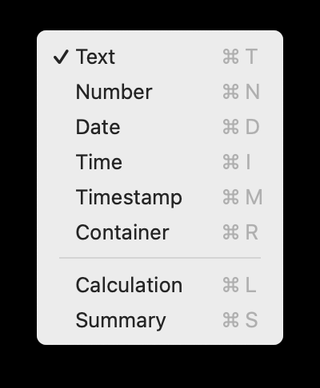
- Calculation fields start with a lowercase c, followed by the letter of the result type the calculation returns — the same letter as FileMaker's keyboard shortcut for choosing that type: t for text, n for number, d for date, i for time, m for timestamp, and r for container. That gives, for example: ct_FullName.
- Global fields start with a lowercase g. The second character follows the same logic as calculations — the letter for the field's type, on the same basis. That gives, for example: gt_GlobalName.
- Summary fields start with s_. No need here to specify a result type — a summary field is always a number.
Relationships graph
The relationships graph is the heart of FileMaker development. The nerve center of the whole application. This is where every context is defined. You should be able to read it like a book — and understand, almost, the entire application just by looking at it.
This is where you'll find the most differences between developers. More than naming conventions, what I'll show you here is how we build the relationships graph, our development philosophy. We follow what's known as the "Anchor and Buoy" pattern: a table occurrence used to build a layout is the starting point for every relationship useful to whatever will be represented on that layout.
Let's start with the notion of a "view." That's simply our context, nothing more. Why that name? Because we have something to show. And to show something, you need a stage — in FileMaker, that stage is the relationships graph.
We build our layout starting from a table occurrence. On that branch of the graph, we attach only what's strictly necessary for the representation currently being built — that is, for the layout we're building. Never table occurrences that would only serve another process, even if that process also technically starts from the same view.
One important point: if a layout's graph is too large, FileMaker takes time computing it before it can display data. So the larger the layout's graph, the slower the database. Building dedicated graphs for complicated processes is therefore much clearer, and much easier to manage, within the relationships graph.
That's why we split things up as much as possible, and why we name each point with a letter. The choice of letter carries no symbolic meaning: it's simply the next one in alphabetical order at the moment we start developing that part. The "Quotes" view isn't necessarily called Q, any more than the "Companies" view is necessarily C: the letter arrives when the domain arrives, not before. But once assigned, it identifies that domain for good (as in our example) — every somewhat complex process that comes along later and also concerns that domain will reuse the same letter B, with the next index: B02, B03, and so on.
To illustrate with our example: index 01 is always the main display view for the user. The following indexes serve processes, possibly Card windows. So B01 displays the quote itself, while B02 and B03 serve related processes — duplicating a quote into a deal, or printing it.
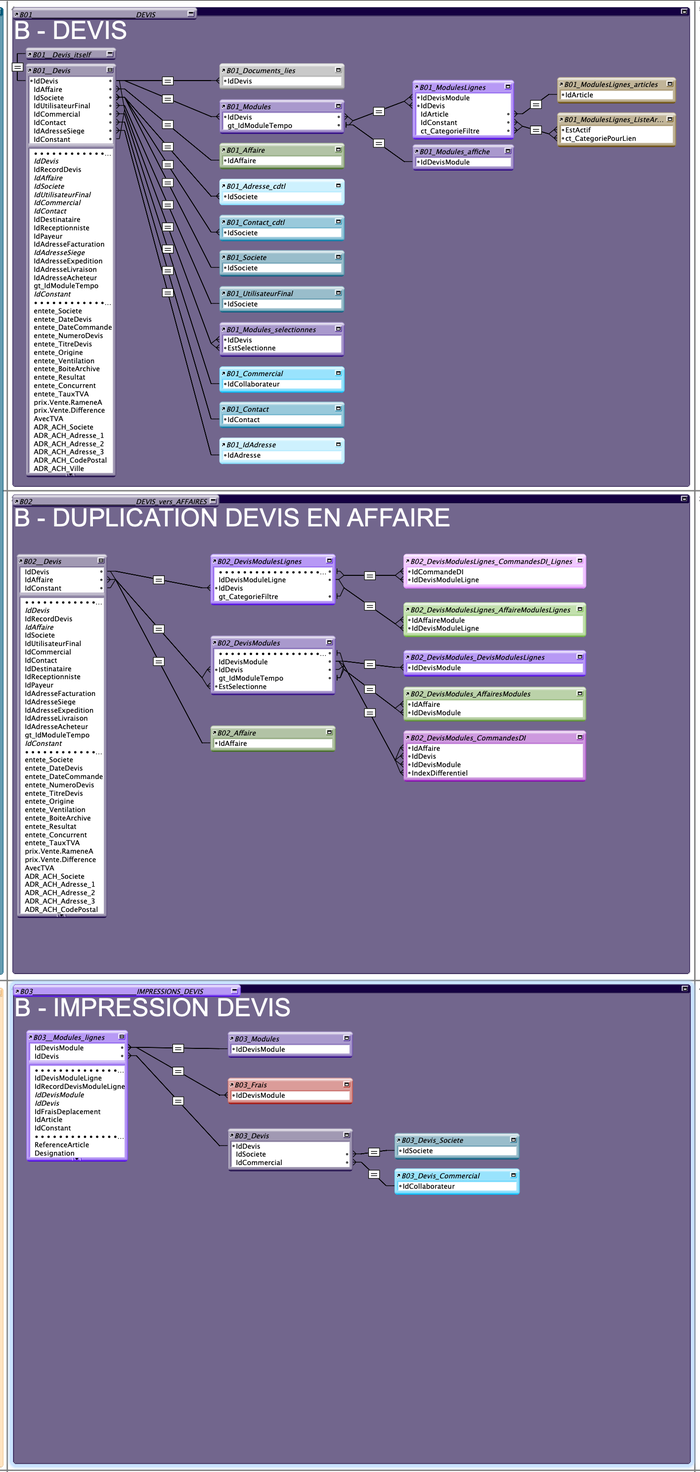
At the other end of the numbering, two indexes are also reserved. B99 is the destruction view: if I delete a record from the main occurrence, its children get deleted along with it — we delete a quote's line items when the quote itself is deleted. B98, meanwhile, handles calculations needed by the table, such as a quote's totals.
There's never a letter C, however — for those developing in English — nor a letter T — for those developing in French. We'll see why later.
Occurrences sharing the same letter stack one below the other. That multiplies the number of graphs, but it clarifies the development. You only move to a new column to change letter.
Once this organization is in place, a few more visual habits round things out. I systematically assign a color to each of my POTs — that way, on a graph, you know at a glance exactly which occurrence you're looking at.
Next, I decide that my graph should be printable for documentation purposes. But some graphs get quite large, so I switch printing to landscape at 80%, via the Print Setup button — the last one in the Pages section of the toolbar. That only works on Mac, though: Windows can't scale down printing.
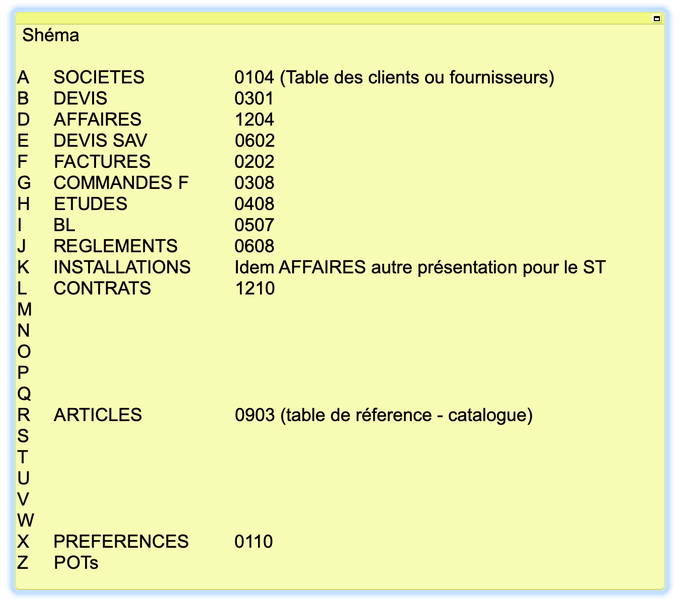
I also place a small text block on the graph that acts as a memory aid: the "Schema." It lists every view letter already in use, along with the name of the associated main occurrence — A for Company, B for Quote, and so on — so I can tell at a glance what each letter corresponds to.
The name of this block deliberately starts with a space: "Schema" without the leading space would start with S, which would conflict with keyboard navigation to a view named S. With the space, typing S always takes me straight to my view, never to this block. Next to each letter, I add a four-digit code, read in pairs: the first two designate the column in FileMaker's color picker, the next two the row. That way, without reopening the color picker, I always know the exact color to assign to each occurrence.
Just before the Print Setup button, the Show Page Breaks button shows the boundaries of each page on the graph. Using this display, I can draw a large text block within a page — in the same color as the anchor occurrence — in which I write the number and name of my view, at 36 pt, so that when I view the relationships graph as a whole (using the shortcut cmd+i on Mac, ctrl+i on PC), it stays legible.
It's very useful for this block to start with the letter of my view: when I open the relationships graph, all I need to do is type my letter to be taken straight to the view I'm interested in. And if I type quickly enough, I can even jump directly to a specific view — B03, for example — rather than simply landing on the first B I come across.
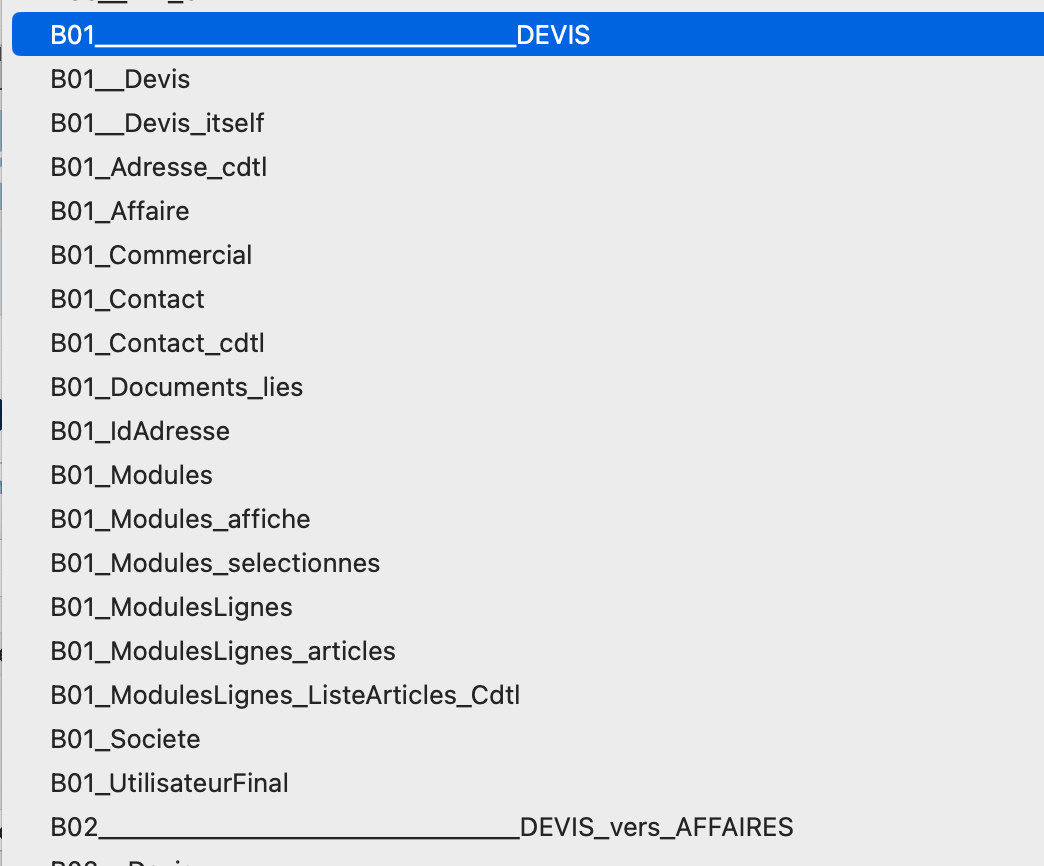
I duplicate my anchor to create a "separator" — we'll see later what it's for. This new occurrence naturally starts with our index, B01, followed by a large number of underscores (no exact rule, but you need a lot, otherwise it's pointless), then the table's name. For view "01," that's necessarily the POT's name — here zQUOTE — in uppercase. For subsequent views, we prefer naming the process the view serves instead. So, for our example: B01__________________QUOTE.
Next comes the anchor itself, which also starts with B01. To find it easily among the lists FileMaker offers, I add two underscores to it. That way it's always the first one listed, right after my separator. Then comes the occurrence's table name, in normal case this time — unlike the separator.
I duplicate my anchor once more and add "_itself" at the end. This occurrence, linked to my anchor through the primary key, is used to display related records — during printing, for example.
All the other occurrences within this view — the "buoys" — follow the same logic, but with a single underscore between the index and their name: B01_Deal, B01_Contact, B01_Company, and so on.
That number of underscores isn't a minor detail: it creates three levels within the occurrence list FileMaker offers us. The separator, with its long run of underscores, appears first. The anchor and its "_itself," with two underscores, come right behind. And all the buoys, with a single underscore, are then sorted alphabetically. A quick glance at that list already tells you what you're looking at.
The first level of buoy therefore has only a single underscore, and most often carries the name of the table itself. If another occurrence attaches to this buoy — a second level, then — it reuses the previous buoy's name and adds its own. And so on for a third level, a fourth, as many as needed.
This construction creates several levels of readability within the occurrence's name itself: just by reading it, you can retrace the entire path taken through the graph to reach it, without ever needing to visually follow the relationship lines.
Now let's come back to that famous letter C we never allow ourselves to use. I use the keyboard a lot. When I create an external table, or need to place a field on a layout, FileMaker offers me a list of occurrences where I can type a letter directly to jump to it. And there's a special entry in that list: "Current Table," the active table of the current layout. By typing C, I jump straight to it, without ever landing on one of my own occurrences. Very handy — as long as none of my occurrences start with C themselves, otherwise I lose that shortcut. Same logic for T: in French, that entry is called "Table active," and typing T should always take me straight there.
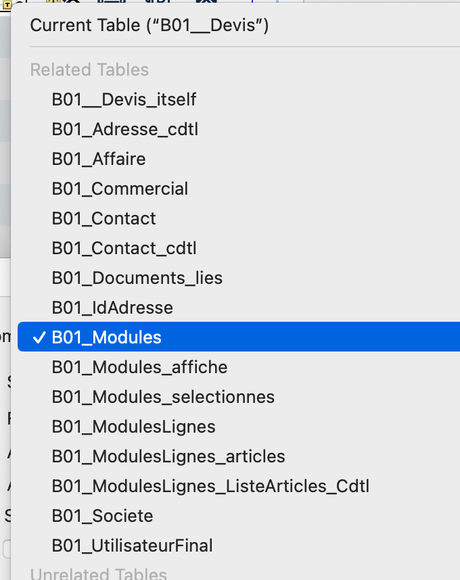
Three more small rules to wrap up. When I add "_Cdtl" to an occurrence, it means it's used to build a conditional list. When I add "Crud," it means that occurrence allows records to be created through the relationship. If I add "_sel," it means the relationship is temporary (built on a global field) and enables a temporary selection or display.
Layouts
We've covered the concept of a view. Now let's put it into practice: let's look at how we name the layouts attached to it.
A layout attached to a view always starts with the letter of that view. For the main layout — the one shown to the user, presumably the only one they ever see — we simply use the letter followed by the name: "B - Quote." For the others, the ones serving side processes attached to a different view, we add the index: "B02 - Duplicate quote into deal," and so on.
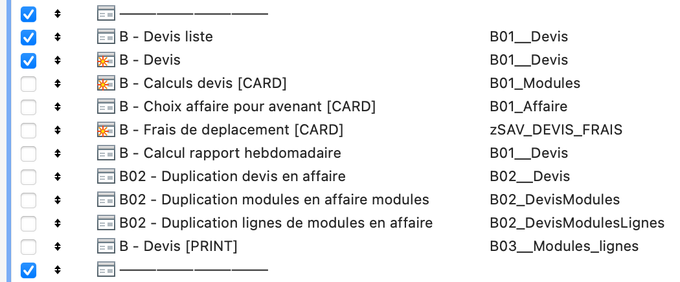
Only layouts truly meant for the user have the visibility checkbox checked in the Layouts menu. All the others stay unchecked: they should never appear in the list the user sees.
We also spell out, in the layout's name itself, what it's used for. If it's a Card window, we note that in brackets: "B - Quote calculations [CARD]." If it's a print layout, we note that too: "B - Quote [PRINT]." If it's a list, we say so as well, but without brackets this time: "B - Quote list."
This might look like a small detail, but it changes everything day to day: if I need to work on every Card window across my development, all I have to do is filter the layouts list on "[CARD]" to find them all at once, regardless of which view they belong to.
On every layout, I also add a merge field that displays its number. It's normally visible only to developers — except on print layouts, where it stays visible at all times. Why that exception? Because it's often on printouts that clients ask for changes. All they have to do is give me the number they see displayed, and I immediately know which layout they mean.
One last detail: between two different letters, I manually add a separator in the layouts list, using FileMaker's native "Separator" tool.
Scripts
Scripts follow the same rules laid out from the beginning of this article.
They carry the name of the view they relate to — the letter on its own, without the two-digit index, unlike layouts. A script belonging to view B is therefore called "B - ScriptName," never "B01 - ScriptName." They're organized into folders that reuse the same letter as that view, followed by the name of the main occurrence.
When a script is a subscript, I indent it by 4 spaces before its name, and place it right below its parent script.
If it takes parameters, I list them between braces, separated by a "|": { IdContact | Date }.
If it's called by a server script, I ask that it not be renamed, and flag that with the mention DNR (do not rename).
We have one script per function — sorting, GTRR (Go To Related Record), and so on. For a long time we followed a strict one-button-equals-one-script rule, but that was an old habit from before FileMaker had script parameters.
If the script needs to run on the server, I note that with [PSoS] (Perform Script on Server). If it's a trigger, I state that too, specifying which one: [TRIGGER OnFirstWindowOpen], for example.
If it's called from JavaScript, no more spaces in the name: every space gets replaced with an underscore.
If the script works regardless of view, it starts with "Grl - ," for General. And if it's reserved for developers, it starts with "DEV - ."
Now let's talk about what goes inside.
Every script always begins with an explanatory text block. It repeats the script's name, states what it does, who wrote it, and when. And if it takes parameters, those are noted too.
All parameters are passed as JSON, which is very handy — for passing options, for instance. And if a parameter is empty, that's fine — the script should be able to handle it.
The very first thing done in the body of the script is redistributing the received parameters into variables.
If a variable needs to be used without coming from a parameter, I declare it empty at the start of the script. We use the MBS plugin and its script syntax coloring (Mac only), which is very handy: it warns me if I use a variable that doesn't exist, or if its name is misspelled — hence declaring it empty at the top of the script. That saves precious debugging time.
Each major branch of the script — an If, a Loop — starts with an explanation: the names of the variables used, and why they're named that way.
As many explanatory comments as possible: that fully contributes to documentation.
A script always ends with an "Exit Script" — very handy when debugging.
The script itself is the writer's prose. Everyone codes their own way, and I don't have any other rule to give on that front.
One last thing, this time to save time: always switch to Find mode before navigating to a layout, never the other way around. If the target layout contains a lot of fields, or summary fields, FileMaker will try to display them before moving on to the next script step — and you'll have lost precious time.
That covers scripts. As with the relationships graph, these aren't absolute rules — they're a way of coding that, over time, becomes second nature, and that lets any developer on the team pick up a script written by someone else without having to rediscover everything.
Value lists
Always the same rules.
A value list that displays conditional data necessarily carries the letter of the view it belongs to. The others are, most of the time, prefixed with "Grl - ."
When a list uses an identifier as its first field, we generally don't ask to display it — so it's the second field, the one the user actually sees, that gets used for sorting. The list's name nonetheless keeps track of both fields used: Idxxx, then the name of the displayed field.
Note that certain design functions, like ValueListItems, reference the value list's name directly, passed as text. To avoid a renaming error, we add the famous DNR there too.
And if the list's content is analyzed by a calculation or script, we add UC (Unchangeable) to the end of the name. That's to remind us never to check the option that would let the user modify that list: if the values change, the calculation or script that relies on them breaks.
Custom functions
We don't have a particular rule here. As long as the name is explicit, and its purpose is clear just from reading it, that works for us. Same goes for the parameters it takes.
So if you have rules on this, don't hesitate to share them with us, along with your reasoning — that could help us too.
Theme and styles
Now, a section that gave us trouble for a long time — and that still trips us up sometimes today. The inspector that displays style names isn't very wide, and it doesn't scroll horizontally. So we have to be extremely concise.
This is where we break one of the basic rules stated at the very start of this article: no periods. Here, we do use them — but without consequence, since there's no way to work with styles other than through the development interface.
Why a period rather than an underscore? Simply because it takes up less space. And since display space is limited, every character counts.
One thing is well designed: when an object is selected, FileMaker only shows, by default, the styles that apply to it. (You can show everything, but then you lose a major advantage of the style interface.)
A style name, whatever type of object it applies to, must be unique. A "fond.rouge" (red background) style created for a plain field can't, in theory, also exist for a list-type field.
That's where the type suffix comes in. Many people are used to placing it as a prefix. Big mistake: that wastes display space for nothing. We place it as a suffix instead — which lets us, for example, have several "fond.rouge" styles, one per object type, each distinguished by its suffix. And since FileMaker only ever shows us the styles appropriate to the selected object anyway, it doesn't matter that this suffix isn't visible, truncated at the end of the list.
You should know that a style only stores the information from the third inspector tab: colors, fonts, borders, alignment. Not number or date formats, nor notations.
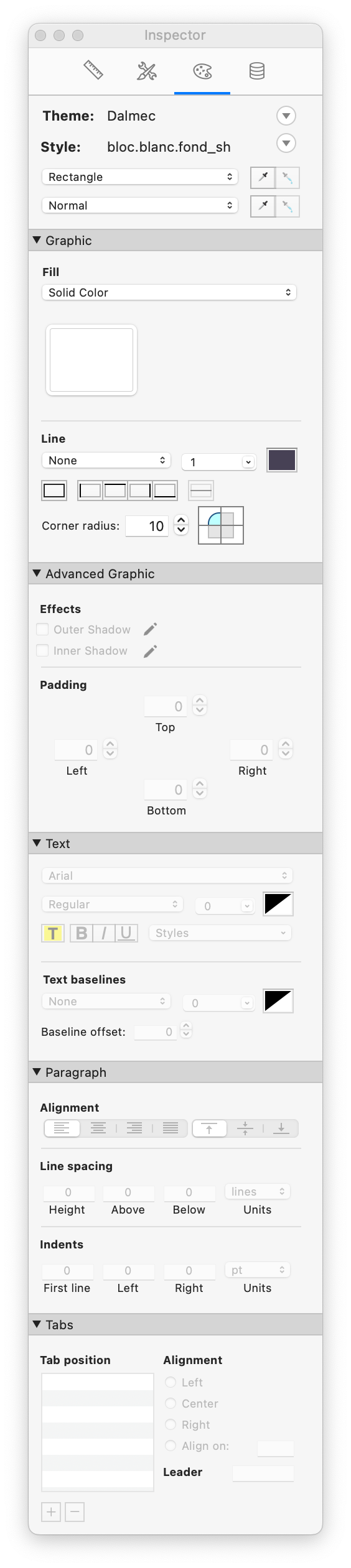
So, here's how we do it now. For a field, whatever its type, this is how we build the style name — each element separated by a period, and always in lowercase, since that takes up less space than uppercase.
We start by indicating whether it's editable or locked. "Editable" is too long, so we don't spell it out — it's implied by default. We only indicate lock if it's locked. Yes, that mixes English and French, but we haven't found anything better for now.
The elements that change most often relate to text, so we start with those, using three letters. For horizontal alignment: drt for right, ctr for center, gch for left. Then vertical alignment: h for top, m for middle, b for bottom. Then font size: 9, 10, 16… Then b, i, or u depending on whether the field is bold, italic, or underlined — and n if the style is standard, meaning normal. Then the border: we use cadre if all four sides are shown, otherwise we specify which ones with the letters d, h, g, b — for right, top, left, bottom.
We don't codify corner rounding. To us, that's generic to fields and shapes alike — it's part of the design, on the same footing as font color, line color, or a field's background. We don't treat it as a variable. In the same way, we don't codify the presence of shadows. And indentation is part of the generic style too: it isn't codified either.
Now that we have the style name, the last step is adding its suffix, preceded by an underscore, indicating the type of object it applies to:
- pt for part
- ln for line
- sh for shape
- eb for edit box
- ddl for drop-down list
- pum for pop-up menu
- cbs for checkbox set
- rbs for radio button set
- ddc for drop-down calendar
- cr for container
- tx for text
- bbr for button bar
- bt for button
- tp for tab panel
- te for portal (yes, I know — but "table externe" [external table] is just too deeply ingrained in how we talk about it)
- wv for web viewer
- pop for popover
Naming objects
We sometimes need to refresh or activate specific objects from the interface — and for that, they need names.
- An external table (portal) starts with te, followed by the occurrence's name, without the view's letter or index.
- For every other object, we reuse the prefixes from the table above.
That covers the whole of our naming conventions — from files down to object names, by way of the relationships graph, which remains, as we've seen, the heart of it all. These aren't absolute truths, as we said from the very beginning. They're the result of more than 26 years of adjustments, backtracking, and choices that reflect who we are. They let us — and anyone who ever picks up our code — find our way around without having to rediscover everything.
If they save you some time, all the better. If they simply get you thinking about your own conventions, that's already worth something.
That's the full tour. If you have better ideas, we're all ears.
If you're interested, you can download a memo of all these rules here.